
场景
所谓联动菜单,就是后一个下拉框的选项是根据前一个下拉框被选中的值来决定的。一个典型的应用就是省市联动菜单,选择省份之后,根据此决定市的选项。
设定选项层级
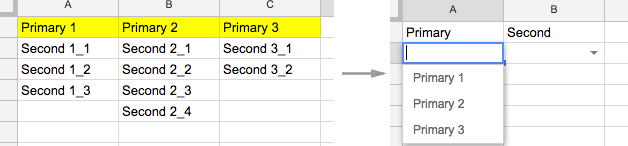
新建一张Sheet,命名为shelf, 将第一层级选项(Primary)作为第一行,第二层级选项(Second)作为各列细项,做出菜单项数据源表。
动态生成Second数据
新建一个临时文件表,命名为temp。在临时表中根据用户选择的Primary数据,动态生成一行Second数据,然后设置Second的数据源为对应的一行动态数据。
1.在temp表A1输入公式:
=transpose(arrayformula(if(MainSheet!$A2='_shelf'!$A$1,'_shelf'!$A$2:$A$100,if(MainSheet!$A2='_shelf'!$B$1,'_shelf'!$B$2:$B$100,if(MainSheet!$A2='_shelf'!$C$1,'_shelf'!$C$2:$C$100,"")))))
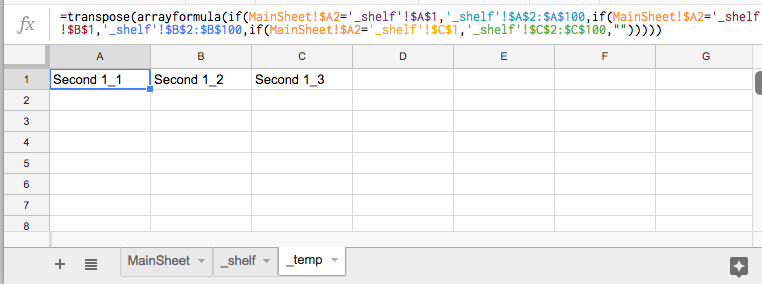
2.将A1的公式复制到整个A列。
设置Second的数据验证源
每一个Second单元格对应每一行temp表的数据源,在此利用脚本批量设置。
1.选择“工具-脚本编辑器”新建脚本文件,代码如下:
/* Validation+ Script copied from:
 * https://productforums.google.com/forum/#!topic/docs/pBDeCGqzlMI
 * @author AD:AM
 *
 *
 * Example how to use this:
 * 1. Input the proper data validation to the top-most cell of a vertical group
 *    of cells (ie. one columnd-wide; as many rows as you want).
 * 2. Select the group of cells, making sure the top cell is the one with data
 *    validation.
 * 3. Choose the Validation+ menu and click "Copy validation (relative rows,
 *    absolute columns)"
 * Voila!
 */

/**
 * Build menu on open
 */
function onOpen()
{
  SpreadsheetApp.getActiveSpreadsheet().addMenu
  (
    "Validation+",
    [
      {name: "Copy validation (all relative references)", functionName: "copyValidation"},
      {name: "Copy validation (relative rows, absolute columns)", functionName: "copyValidationColumnsAbsolute"},
      {name: "Copy validation (absolute rows, relative columns)", functionName: "copyValidationRowsAbsolute"}
    ]
  );
}

/**
 * Copies the data validation from the top-left most cell of the current
 * selection of cells to the remaining cells in the selection.
 *
 * 1. Apply "data validation" to the top-left cell of a group of cells
 * 2. Select that group of cells
 * 3. Choose the applicable Validation+ menu item
 * 4. Done.
 */
function copyValidation(rowsAbsolute, columnsAbsolute)
{
  var ss = SpreadsheetApp.getActiveSpreadsheet();
  var r = ss.getActiveRange();
  var dv = r.getDataValidations();
  var dvt = dv[0][0].getCriteriaType();
  if (dvt != SpreadsheetApp.DataValidationCriteria.VALUE_IN_RANGE) return;
  var dvv = dv[0][0].getCriteriaValues();
  for (var i = 0; i < dv.length; i++)
  {
    for (var j = i ? 0 : 1; j < dv[0].length; j++)
    {

      dv[i][j] = dv[0][0].copy().withCriteria(dvt, [dvv[0].offset(rowsAbsolute ? 0 : i, columnsAbsolute ? 0 : j), dvv[1]]).build();
    }
  }
  r.setDataValidations(dv);
}

/**
 * Copies data validation, keeping the rows absolute.
 */
function copyValidationRowsAbsolute()
{
  copyValidation(true, false);
}


/**
 * Copies data validation, keeping the columns absolute.
 */
function copyValidationColumnsAbsolute()
{
  copyValidation(false, true);
}
2.保存后点击运行,授权新建脚本,回到表格可以看到菜单栏多出一个Validation+按钮。
3.设置好Second第一个单元格的数据源,之后全选本列(如果第一格是标题,需要排除掉),点击Validation+按钮下的Copy validation(relative rows, absolute columns),复制本列第一个单元格的数据源设置。
搞定。